2026-01 Developer Portal Changes
What is the Developer Portal?
The Lightspeed Developer Portal is where you manage your app integrations with Lightspeed Retail. These can be apps you make for your own business, a client, or apps you sell to other businesses. The Developer Portal allows you to manage your apps, your team’s access, monitor the app’s health, create test stores to test your apps, view our change logs, and more.
Developers can collaborate on applications under one organisation.
With the introduction of the Organisation concept in the Developer Portal, developers can now collaborate on applications together under a single organisation. This allows multiple developers to work on the same apps, share resources, and manage access in a structured way.
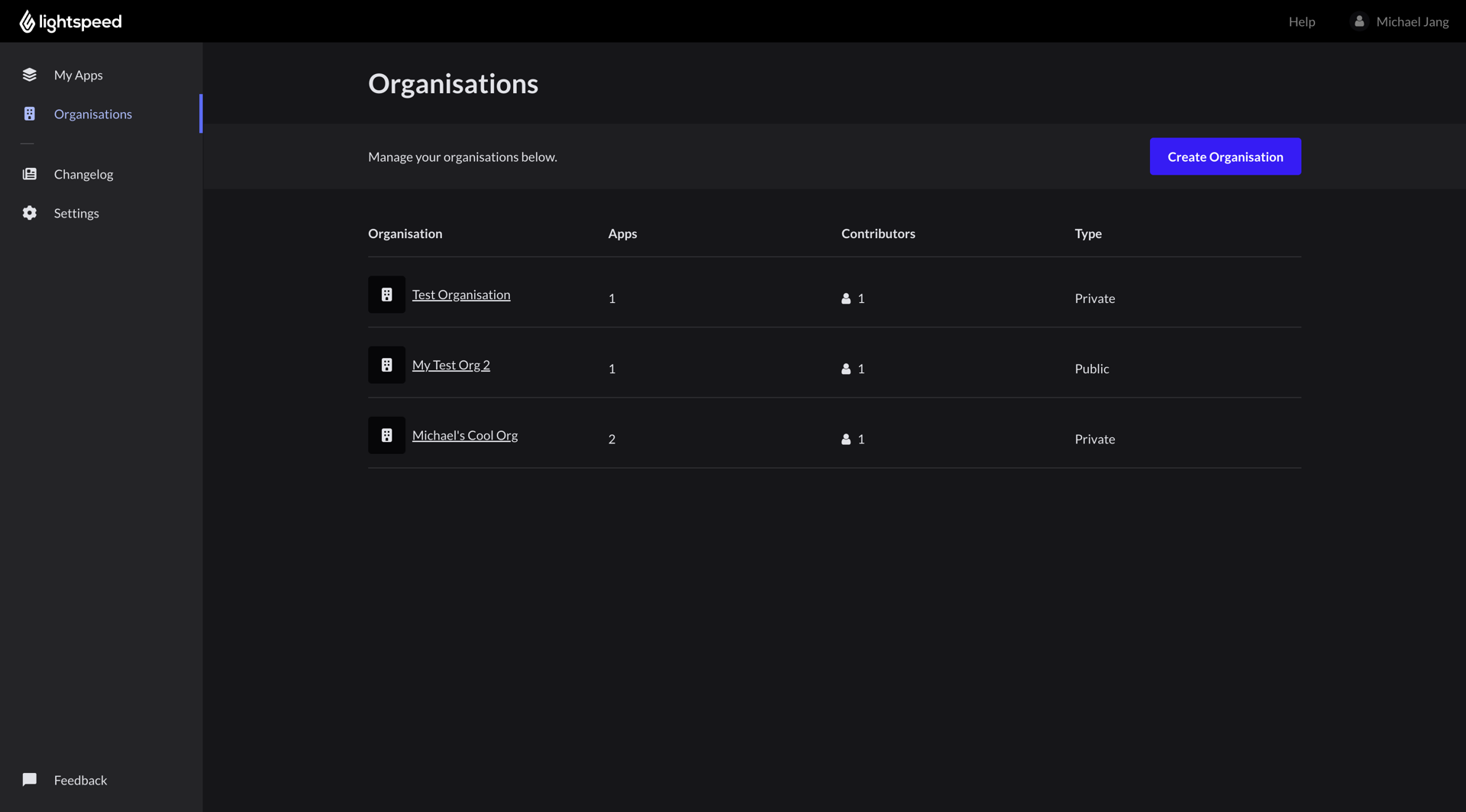
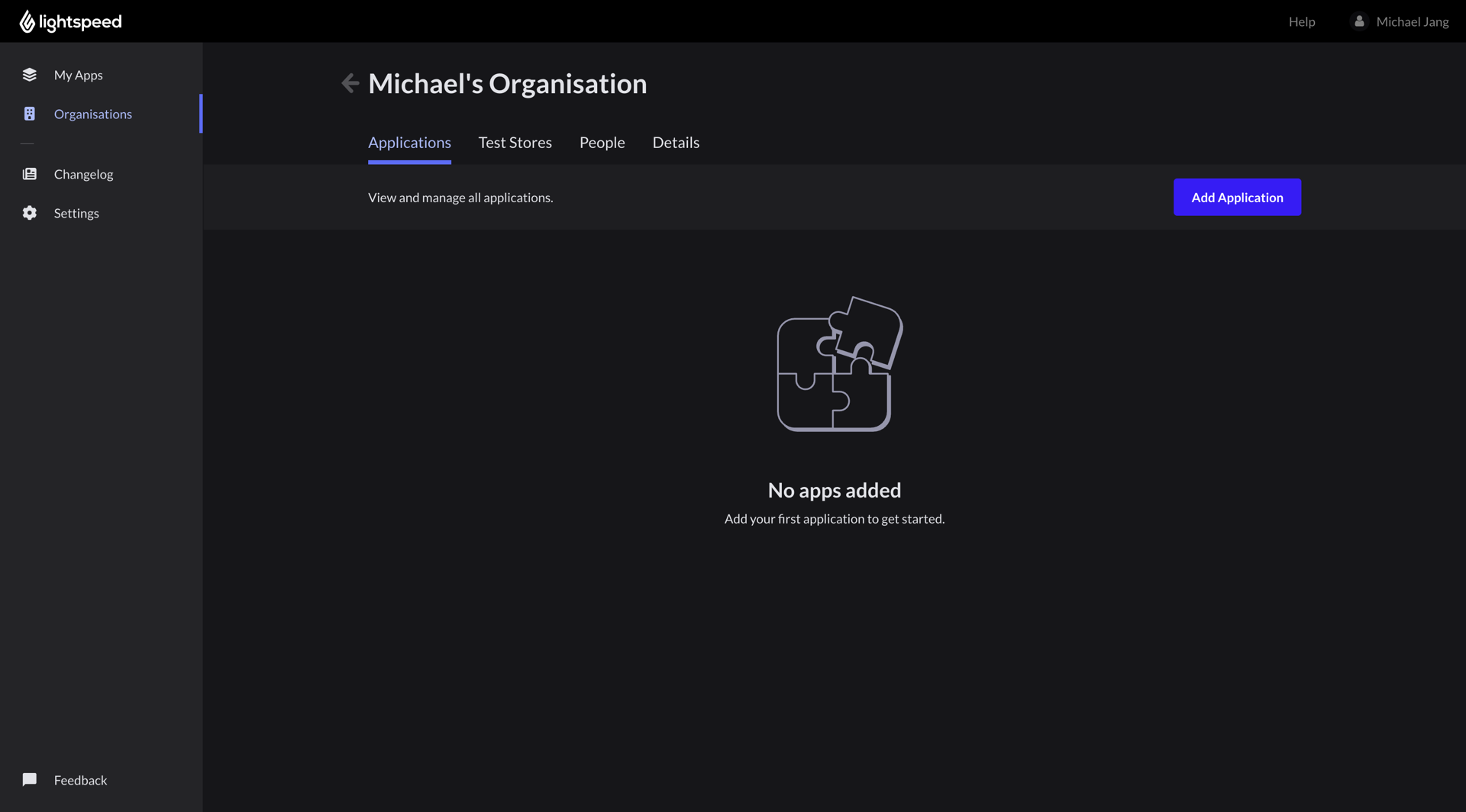
Organisations can be accessed from the left navigation bar.
Developer Can Create Organisation from Personal account
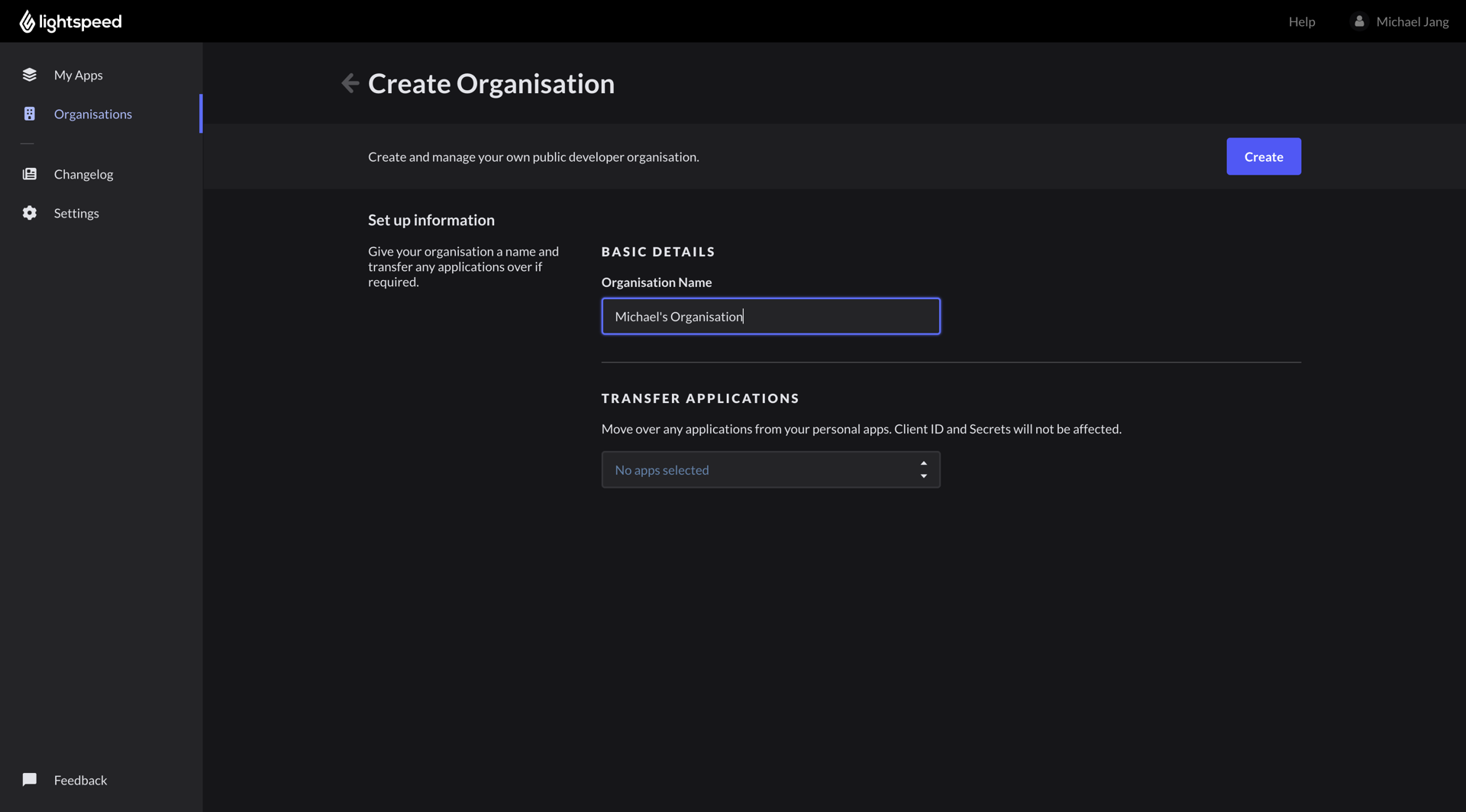
Developers can create an organisation from their personal account and assign applications to it. Once an application is owned by an organisation, all members can access and manage it based on their role.
Once the organisation is created, you can switch between organisations from the organisations page.
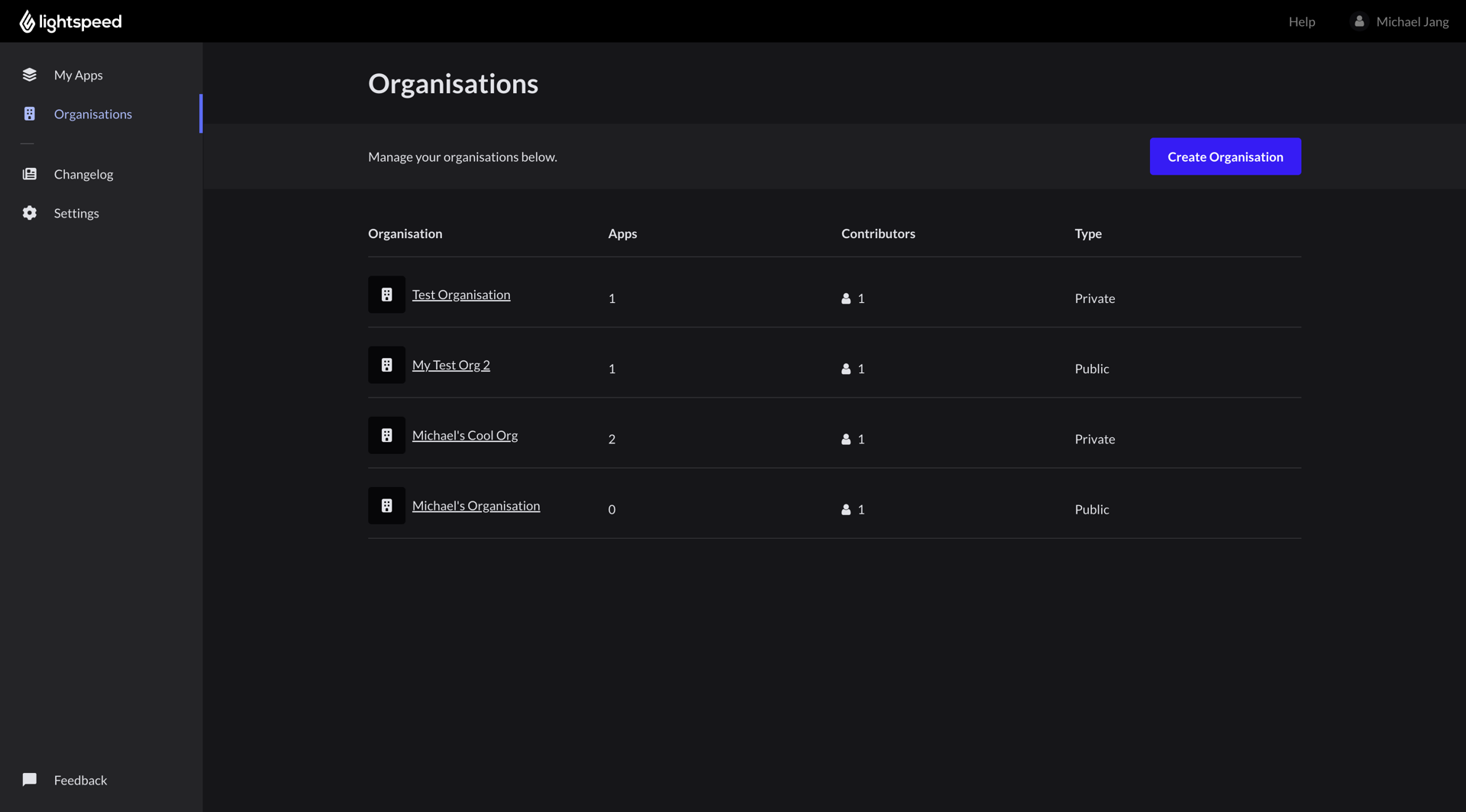
You can click on an organisation to create applications, manage people, and modify details.
Developer Can Invite Other Developers for Collaboration
Sending the Invite
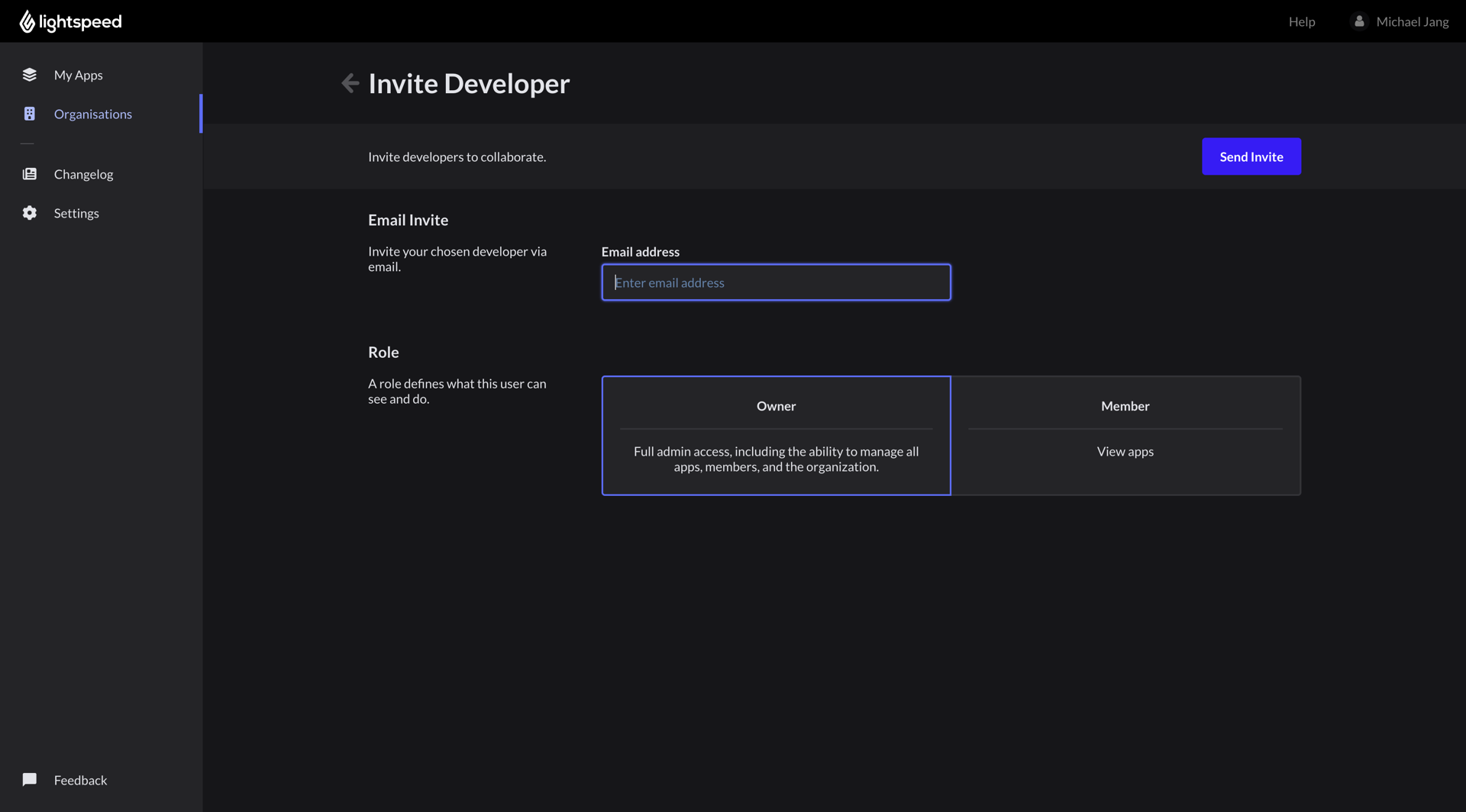
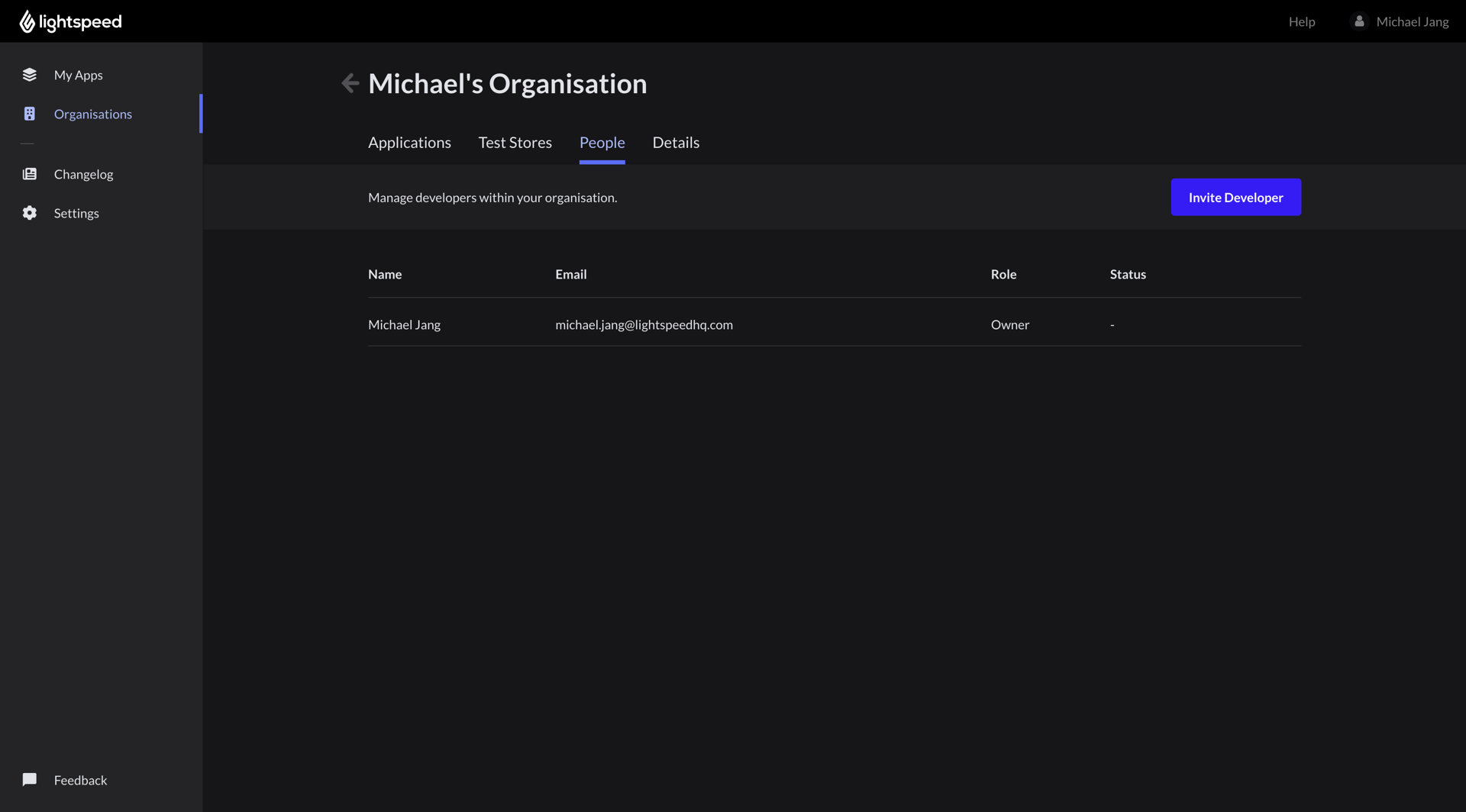
The organisation owner can invite other developers to join the organisation. The available roles are Owner and Member. Invites are sent via email.
Owner/member permission model
Owner – Full control over the organisation, including managing members, applications.
Member – Can access and collaborate on applications shared within the organisation, but cannot manage organisation-level settings or other members.
All external developers are using our dev portal.
Accept/Decline Invite
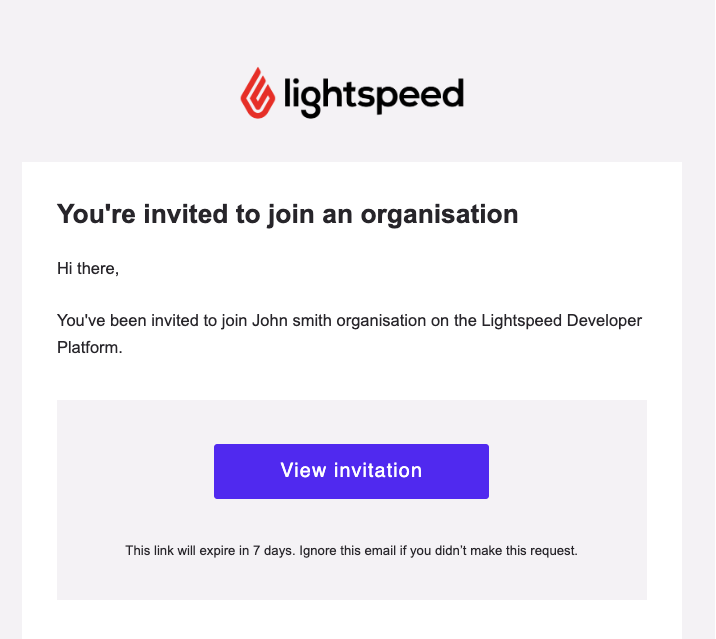
The invitee can approve or decline the invitation. Once approved, they become a member of the organisation and can access the shared applications according to their assigned role.
Once the invitee accepts or declines the invitation, the organisation owners will receive an email notification with the response. If the invitation is accepted, the developer will be added as a member of the organisation.
Developers can learn about upcoming changes in the dev portal
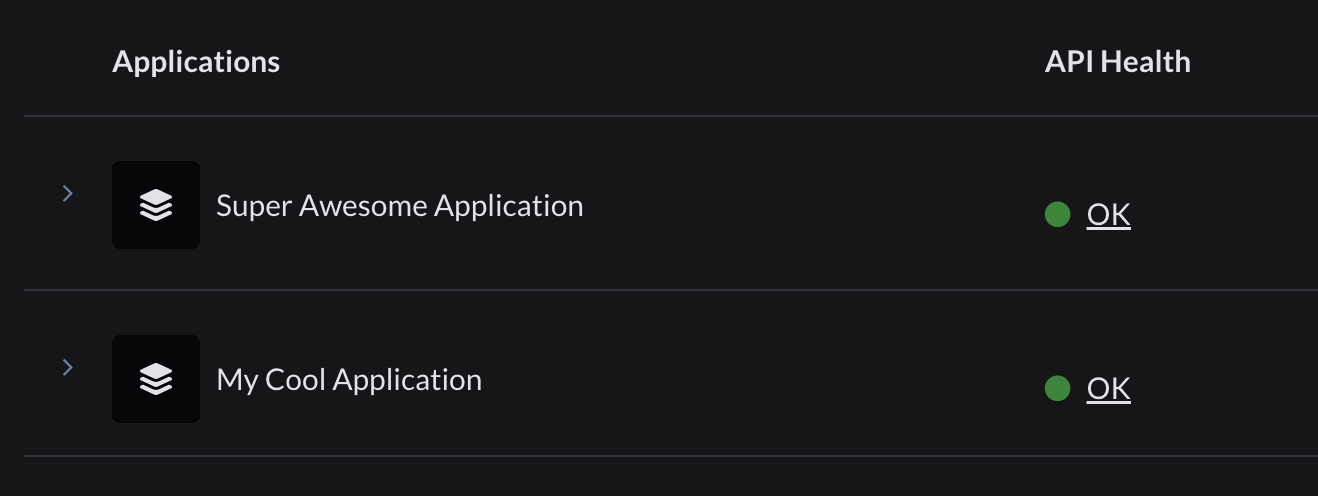
On the Applications listing page, developers can view all applications owned by the selected organisation. The API Health column displays the status of each application — showing green (OK), warning, or critical — depending on whether any action is required.
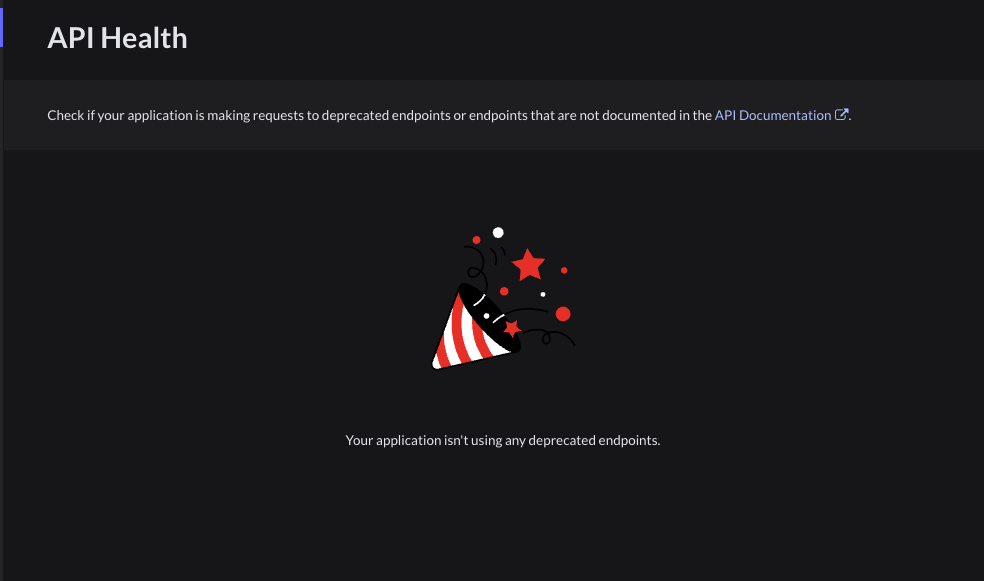
The Application API Health section shows if any action is required, for example, when an application is using a deprecated or unsupported API. Click on the green OK button to navigate to the API Health page.
Developers have access to a demo account which periodically resets
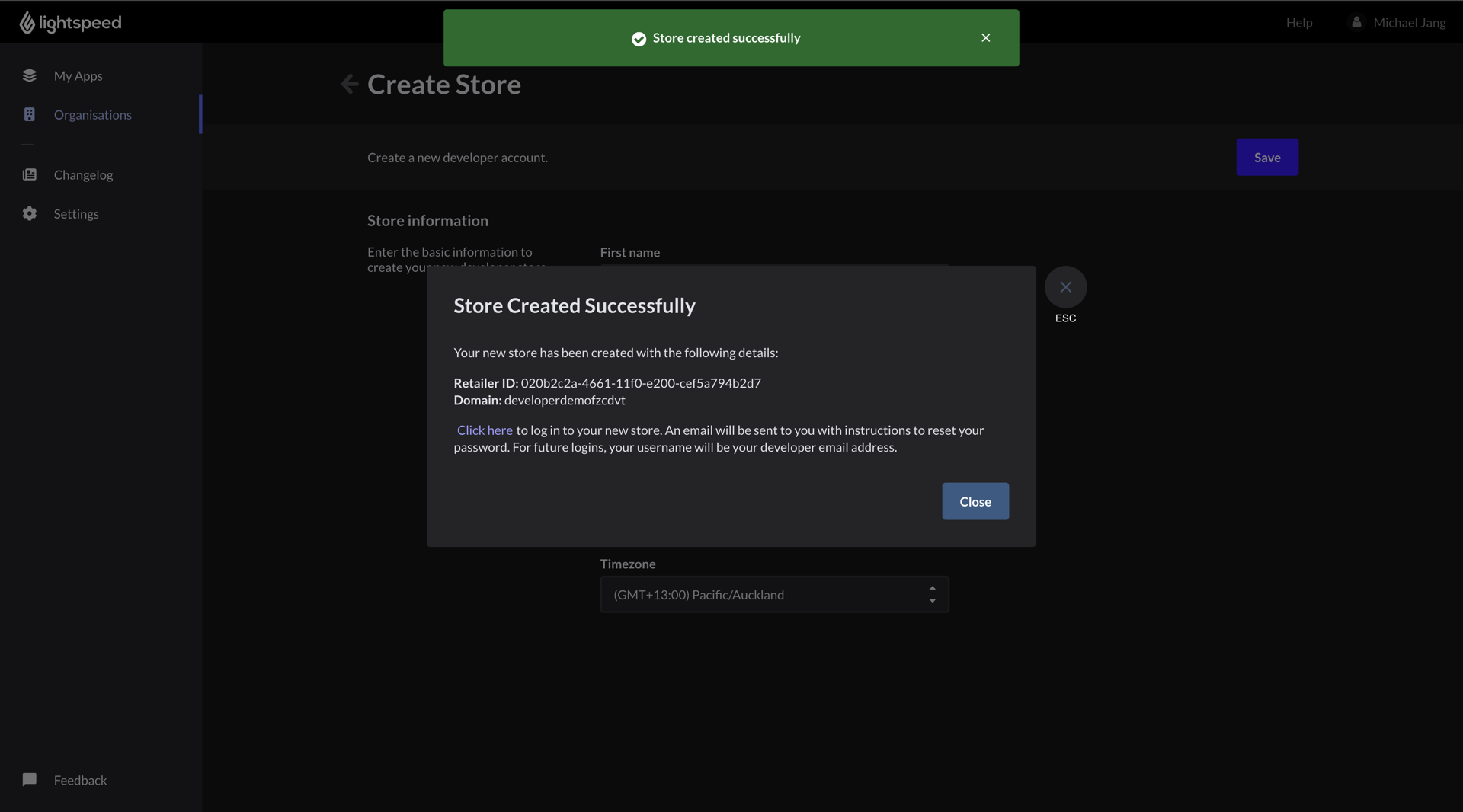
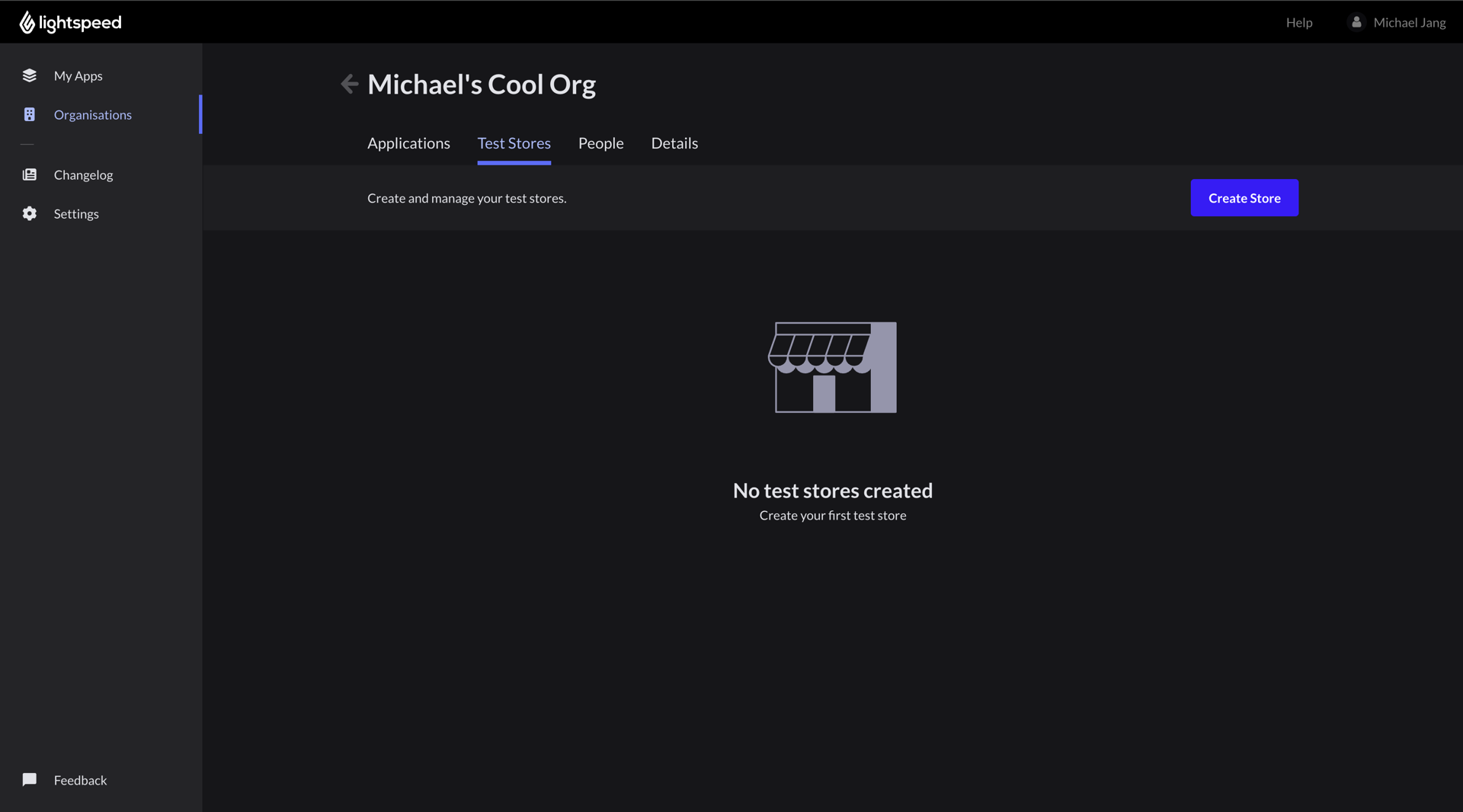
Developers can create demo stores to test their applications. Each store is valid for 30 days before it expires and is eventually deleted. You can create up to three stores at a time, but expired stores can be deleted to make room for new ones. Navigate to the Test Stores tab and click on Create Store
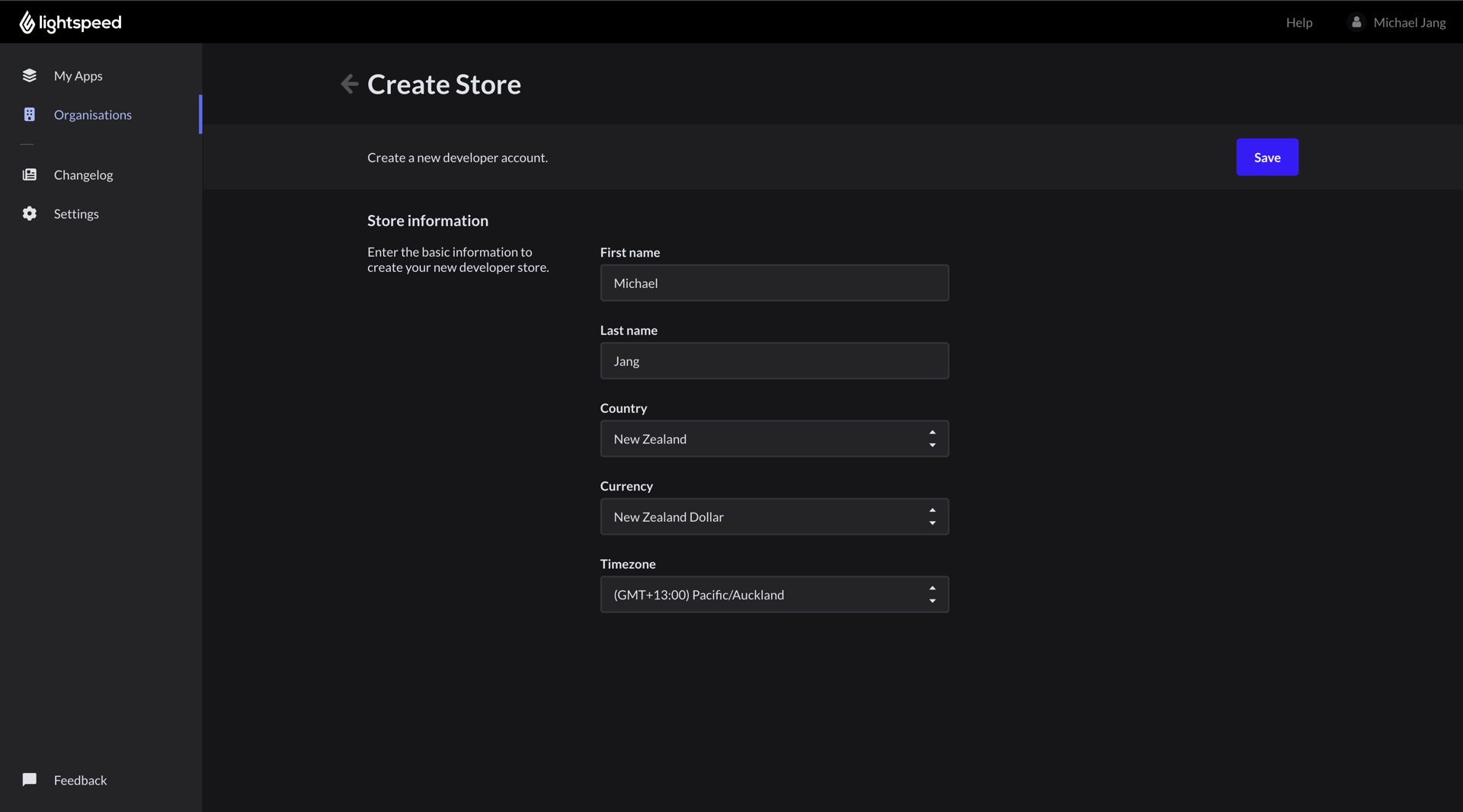
Creating a demo store is easy — just fill in a few details. Most fields have default values, but you can change them if needed, then click Save.
Once the store is created, you’ll receive a link to access it directly.